Put Your DPD Cart Right on Your Own Website
- Jason
- DPD Updates, Feature Spotlight
You can now put your products, add to cart buttons and a full cart right on your own website, with no iframe or popup. Shoppers browse, add items, change quantities and apply a coupon without ever leaving your page. When they're ready to pay, they go to your DPD hosted checkout like they always have.
The fastest way to see it is to try it. We rebuilt our demo page on the new components, so you can add a few products, try a coupon and restyle everything live:
Try the live demo at getdpd.com/demo →
See It on a Real Store
We also built a whole store with it. Cast & Crumb is a made-up cooking shop, a plain static site on GitHub Pages. Every product card, buy button and the cart on it come from these components, styled to match the shop, and checkout goes to the store's own DPD checkout page.
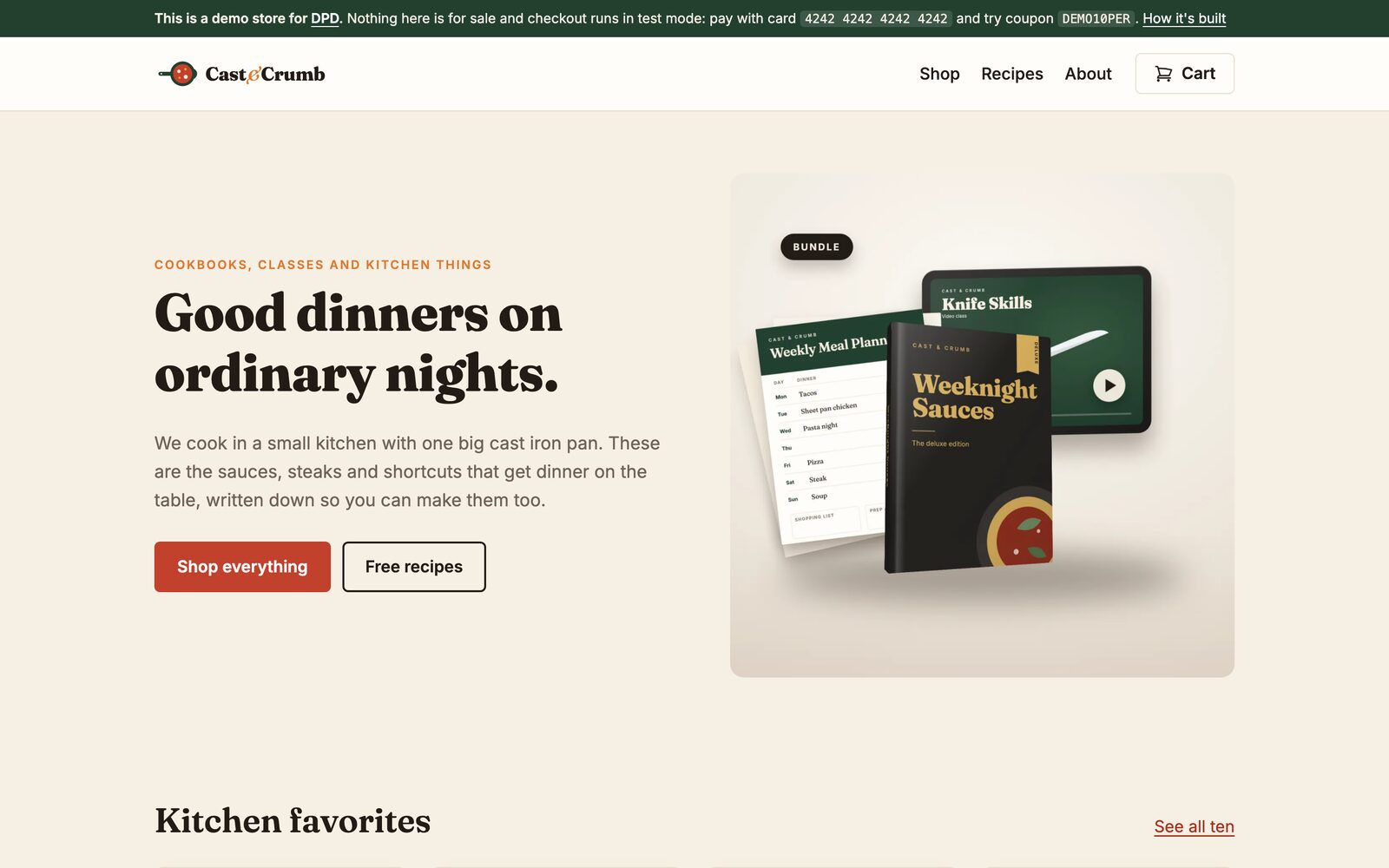
You can buy every product there with a test card and download what you get: a sample cookbook, a printable meal planner stamped with your name, even a short original music track. Its How it's built section shows which component does what.
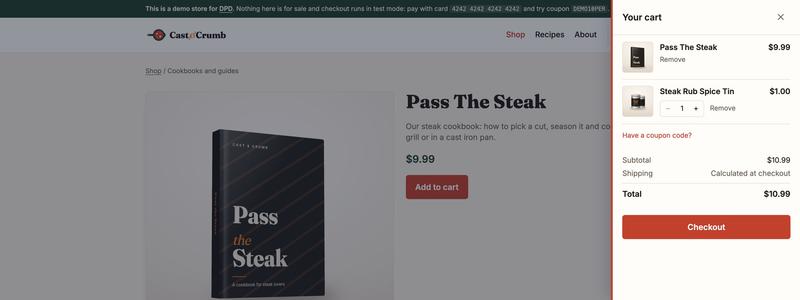
And here's one running right in this post. It's the same Pass The Steak cookbook from that store:
One Script Tag and a Few HTML Elements
Setup is one script tag from your store plus a few HTML elements you drop wherever you want them on the page:
<script src="https://STORE.dpdcart.com/dpd.js"></script>

<dpd-cart-button></dpd-cart-button>
<dpd-product product="123"></dpd-product>
<dpd-add-to-cart product="123">Buy the ebook</dpd-add-to-cart>
<dpd-cart></dpd-cart>
<dpd-checkout-button>Check out</dpd-checkout-button>
Here's what each one does:
<dpd-product>: A product card with the image, name, price and an add to cart button. Addlayout="detail"and you get the full product with its description and a quantity field.<dpd-add-to-cart>: A button for any spot on your page. Whatever you put inside it becomes the label. It runs your product's upsell, EULA and cross-sell steps, then opens a cart drawer on the side of the page.<dpd-cart>: The whole cart inline on your page, with quantities, a coupon field and totals.<dpd-cart-button>: A cart icon with the item count. It opens the drawer. I like it up in a site header.<dpd-checkout-button>: Sends the shopper to your hosted checkout to pay.
Make It Look Like Your Site
The components pick up your page's own font by default. To match your colors and corners, set a few CSS variables on your page (and --dpd-font if you want a different font):
:root {
  --dpd-primary: #2563eb;
  --dpd-primary-text: #fff;
  --dpd-surface: #fff;
  --dpd-text: #1f2933;
  --dpd-muted: #6b7280;
  --dpd-border: #e5e7eb;
  --dpd-radius: 8px;
}
Need more control than that? The components also expose parts you can style with ::part(), like the card, the buttons, the price and the cart drawer:
dpd-product::part(card) { border-radius: 0; }
dpd-add-to-cart::part(button) { text-transform: uppercase; }
The demo page has a style picker that restyles the live components as you click, which is a pretty quick way to see what the variables do.
Your Store's Language
The components show up in your store's language. Translations for 27 languages are built right in, so there's nothing extra to set up.
Events for Developers
If you want to hook in your own scripts (analytics, or a cart badge of your own), listen on window for two events. dpd:cart fires whenever the cart changes and includes the item count and the cart. dpd:added fires after something's added and tells you which product.
window.addEventListener('dpd:cart', (e) => {
  console.log('Items in cart:', e.detail.itemCount);
});
Your Existing Buttons Keep Working
You don't need to change anything you already have. Your current button and widget codes keep working with the lightbox, exactly as before. They also share the same cart as the new components, so you can mix old and new on the same page.
If you'd like a classic cart link to open the new cart drawer in place of the lightbox, add data-dpd-mode="inline" to it:
<a class="dpdcart" data-dpd-mode="inline" href="https://STORE.dpdcart.com/cart/add?product_id=123&method_id=456">Add to cart</a>Getting It Set Up
- In your DPD dashboard, open any product's Button code page.
- Pick the Components tab. It writes the code for you and shows a live preview of how it'll look.
- Add your site's domain under Settings > Checkout > Embed domains. Your store's own website domain is always allowed, so if that's where you're adding the code, you can skip this step.
- Paste the code into your page.
That's it! Head over to the live demo to play with everything, or shop around Cast & Crumb to see it on a finished site, before you add it to your own. Let us know what you think.
Start Your 30-Day Free Trial Today.
No Commitments. Cancel Any Time.
Not ready to commit yet? We understand. Start a 30-day trial of our e-book publishing platform for FREE and explore how it can help you sell e-books, digital products, and downloadable content. No credit card required.
If you’re not happy with our online publishing platform, you can cancel at any time. No questions asked. That’s how confident we are with our product.